Quick start

RideTunes, step by step

Get the app on your phone, set up your first ride, and fix the common snags. About five minutes.

A

Get it on your phone

RideTunes is in testing, so it installs a little differently from a normal app. Follow the steps for your phone, in order.

Android

1

Join the RideTunes Testers group

Use the same Google account that’s signed in to Google Play on your phone. This has to come first, or step 2 won’t work.

Join the Testers group
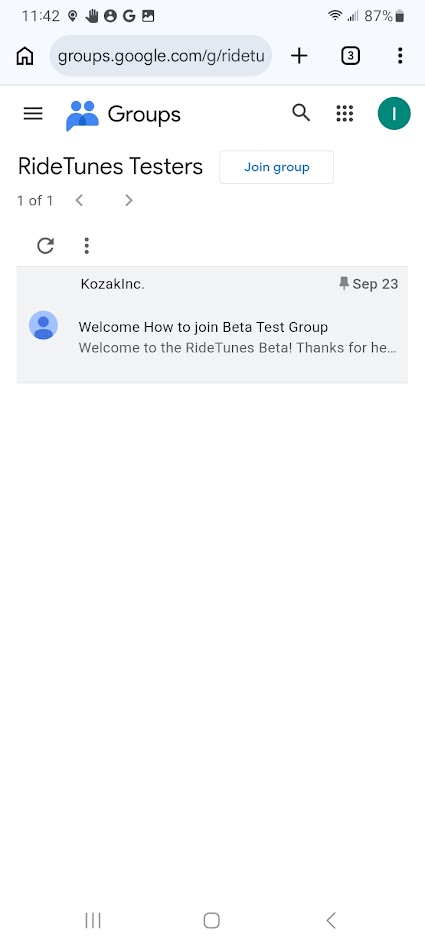
The RideTunes Testers group page with the Join group button
2

Tap “Become a tester”

Open the Google Play opt-in page and tap Become a tester. If it says the page isn’t available, give the group a few minutes and try again.

Open the Play opt-in page
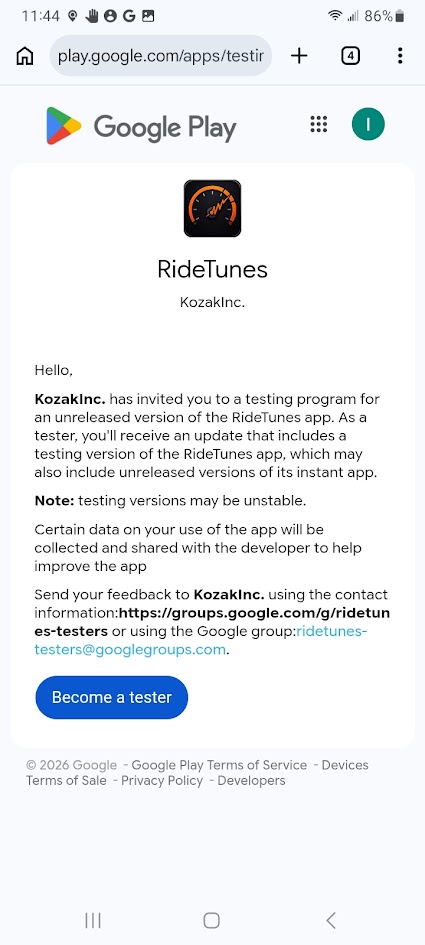
The Google Play opt-in page with the Become a tester button
3

Install RideTunes from Google Play

On the opt-in page, follow the download it on Google Play link (or search Play for RideTunes) and tap Install. Updates arrive through Play like any other app.

After you tap Become a tester, Google Play can take a few minutes before Install works. If it says “Try again”, wait a couple of minutes and tap the link again.
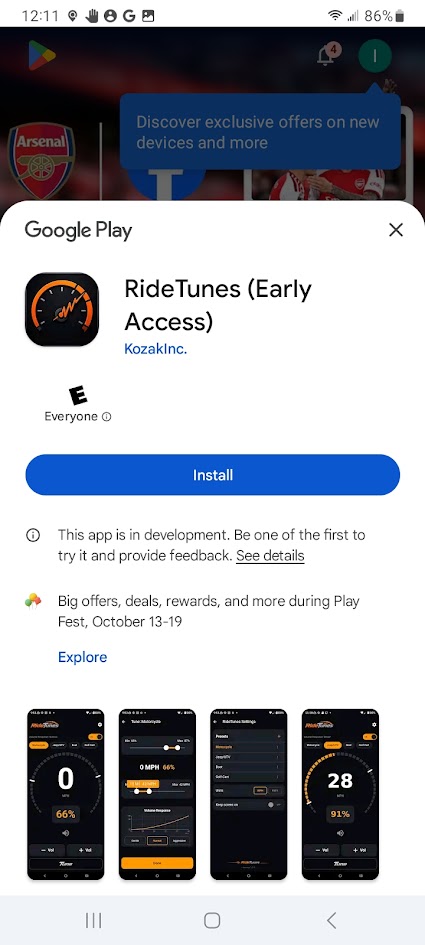
RideTunes on Google Play with the Install button

iPhone

1

Tap the TestFlight link

Open it on your iPhone. TestFlight is Apple’s official app for testing apps before they reach the App Store.

Open the TestFlight link
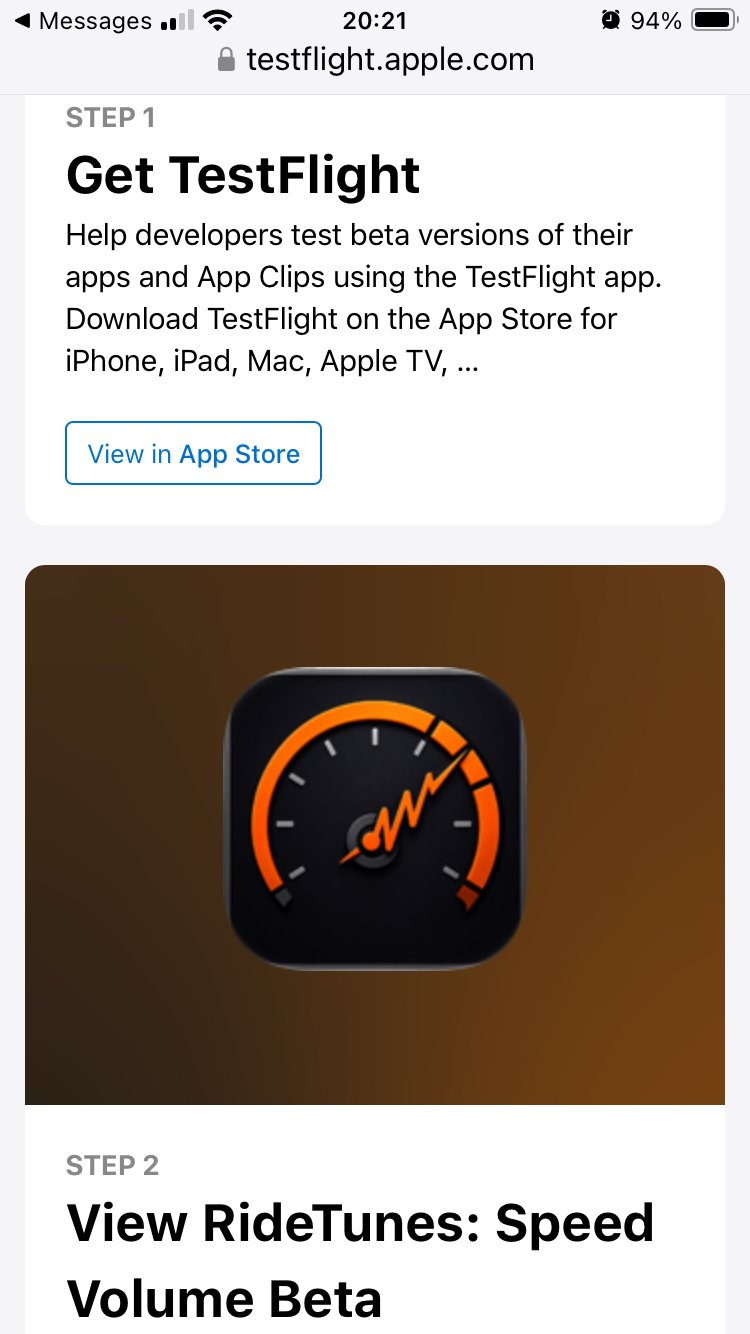
The RideTunes TestFlight invite page
2

Install Apple’s free TestFlight app if asked

If you don’t have TestFlight yet, the link sends you to the App Store. Install it, then go back and tap the RideTunes link again.
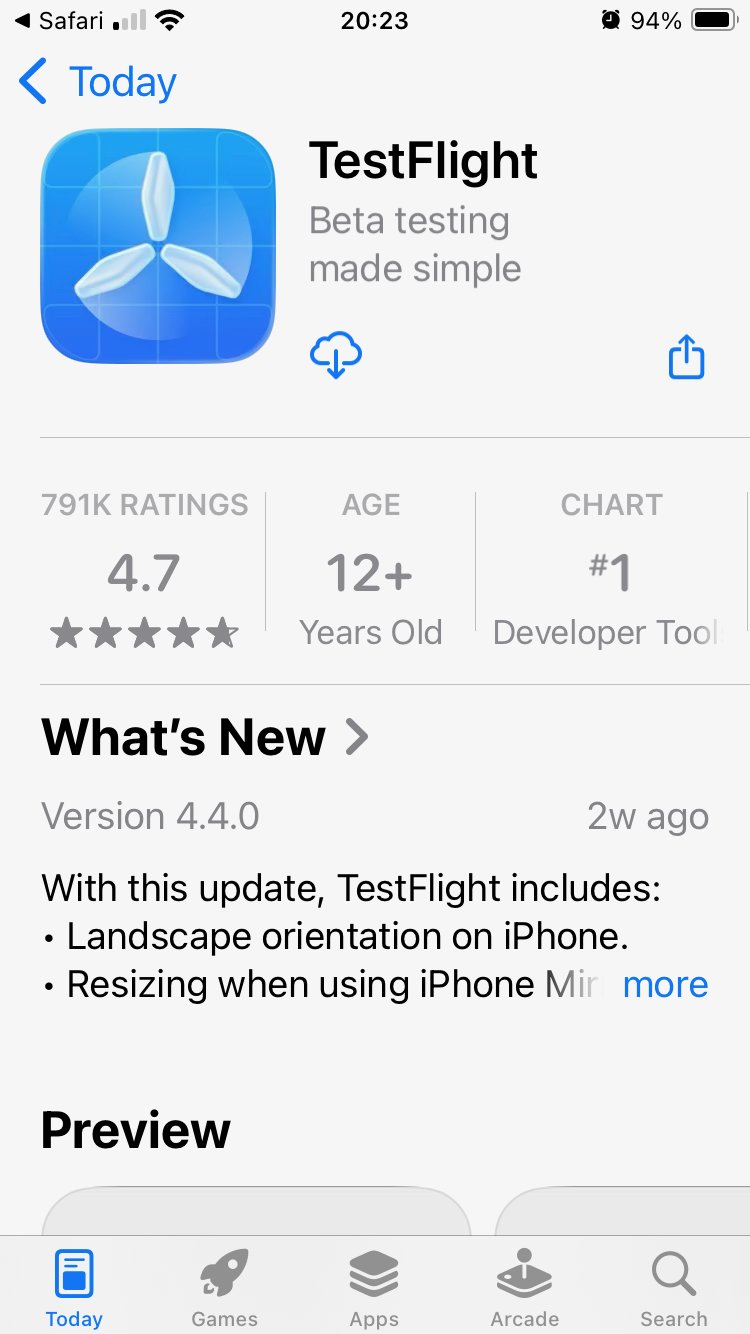
TestFlight in the App Store
3

Tap Install for RideTunes

In TestFlight, tap Install. The first time, TestFlight shows its terms (tap Agree) and a “From the Developer” screen (tap Continue). RideTunes lands on your home screen like any other app; open TestFlight when you want an update.
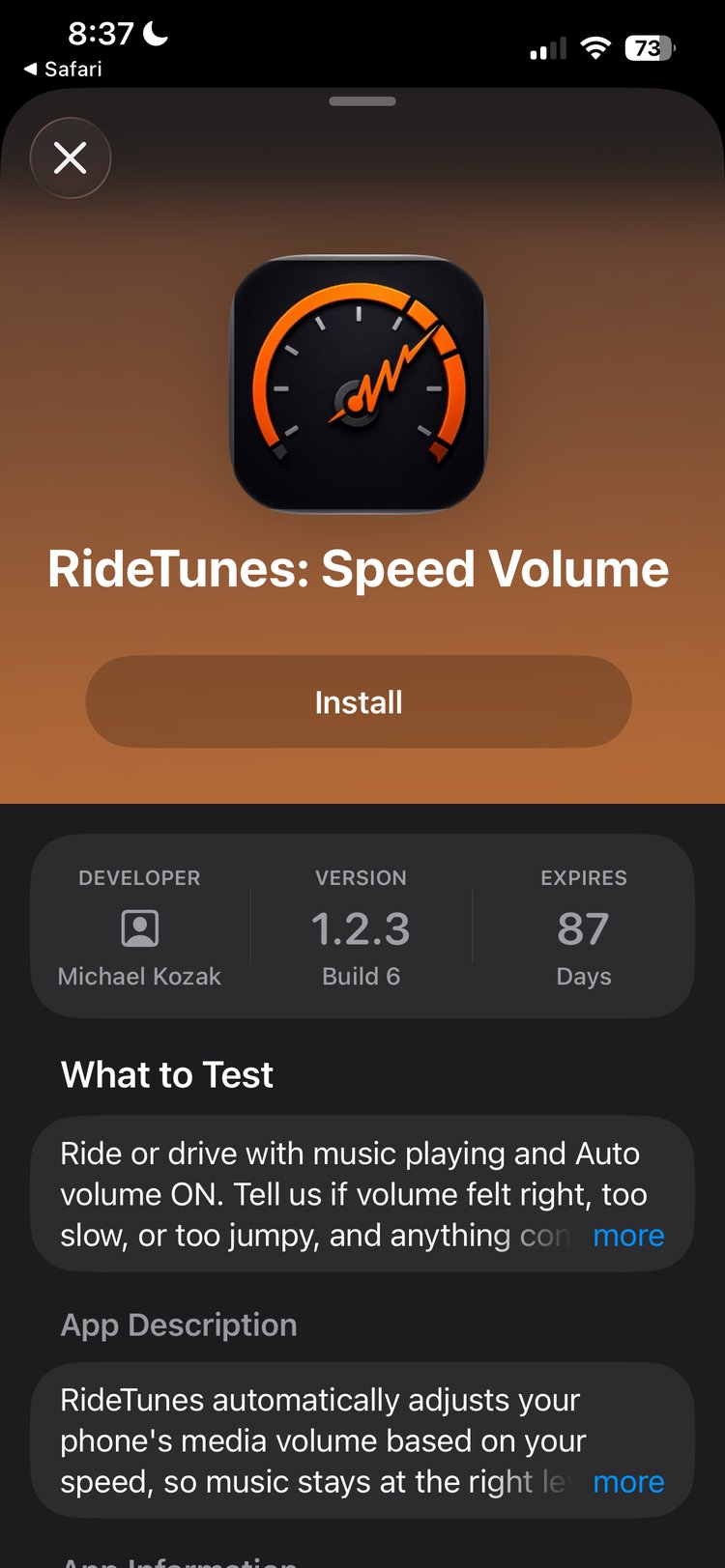
RideTunes in TestFlight with the Install button
B

Your first ride

Do steps 1–4 before you set off. Pair your headset or helmet comm first.

1

Open RideTunes and allow location

RideTunes reads your speed from GPS, so it needs location. Tap Allow; on iPhone choose While Using the App. That’s enough: RideTunes keeps working with your screen locked.
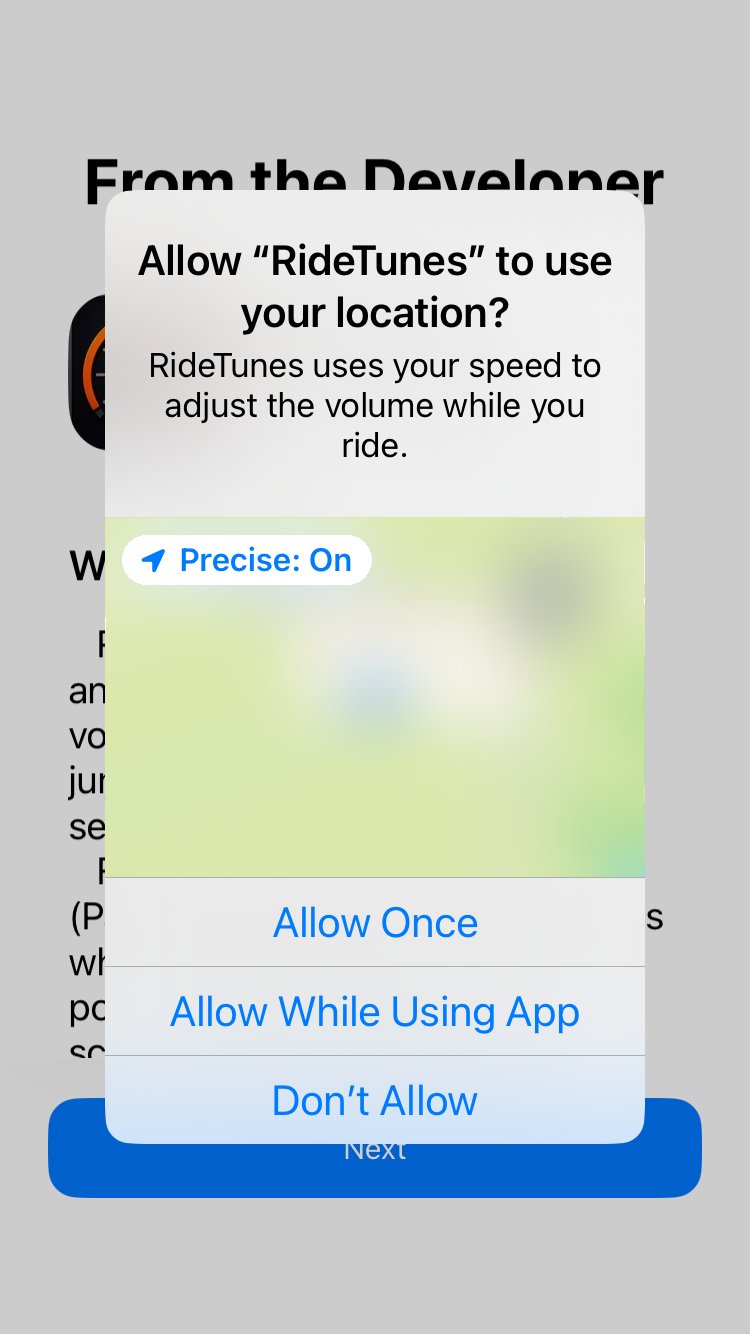
The location permission prompt
2

Pick your preset

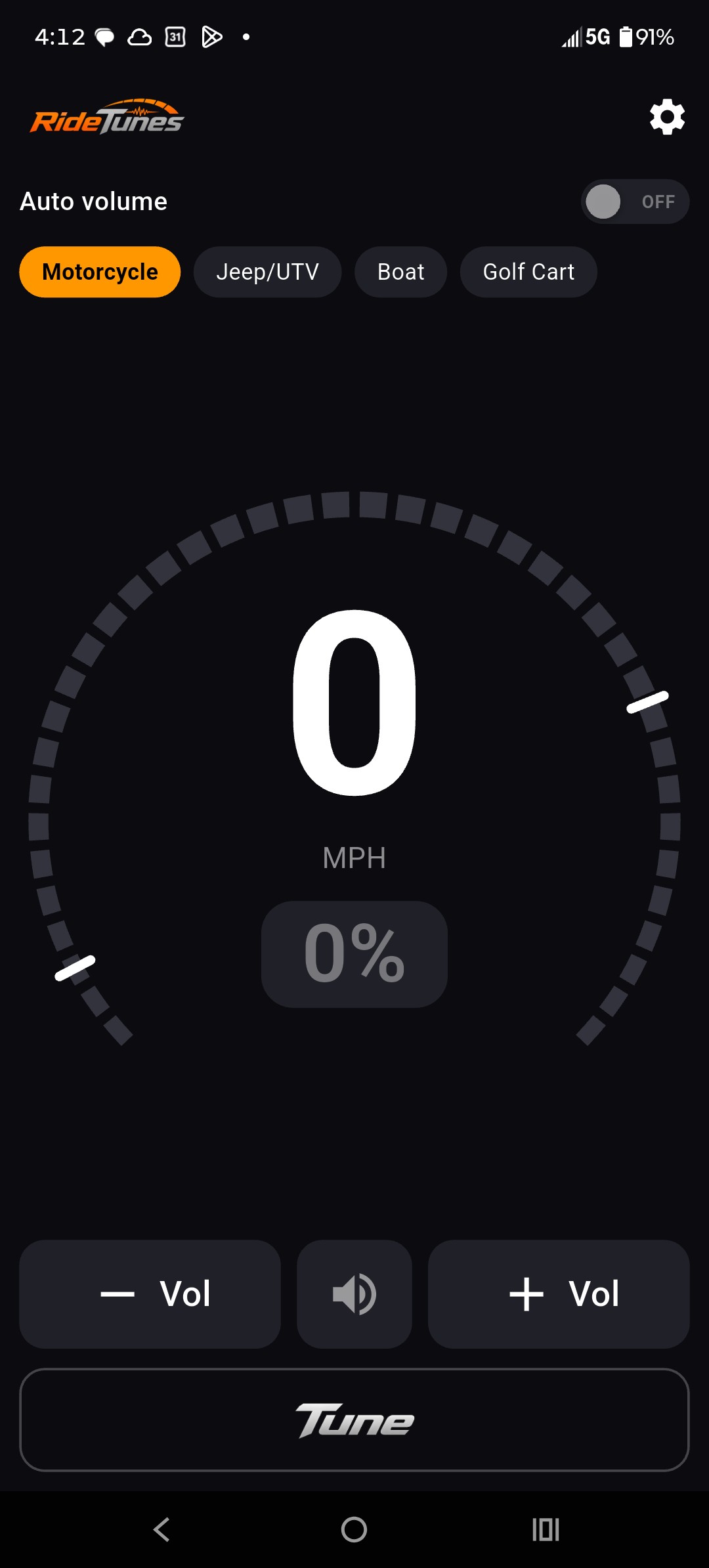
Tap Motorcycle in the row of presets at the top. Each preset has its own speed range and volume range, tuned for that ride.
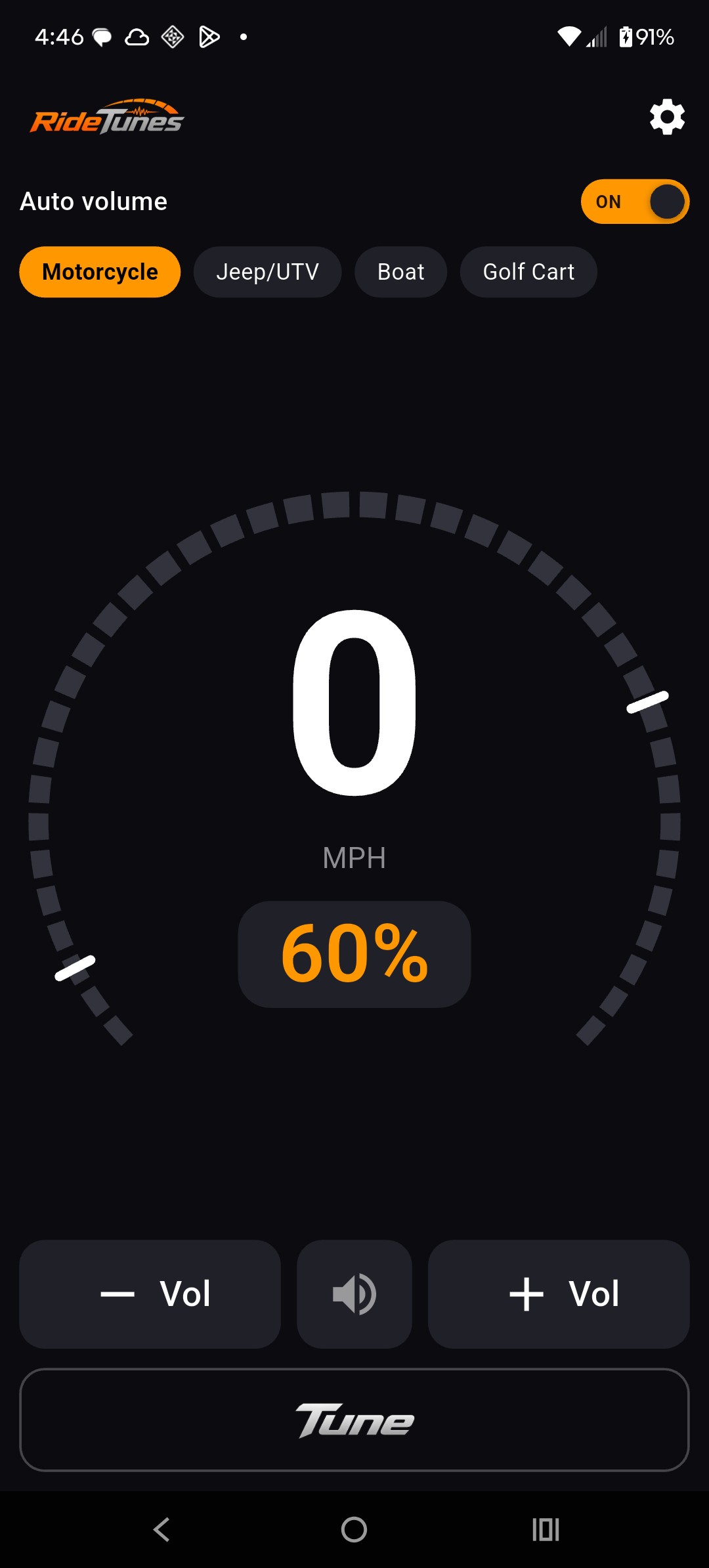
The RideTunes home screen with the Motorcycle preset selected
3

Turn Auto volume ON

Flip the Auto volume switch at the top. RideTunes notes your current volume so it can put it back later. On Android a notification shows your speed and volume while it runs.
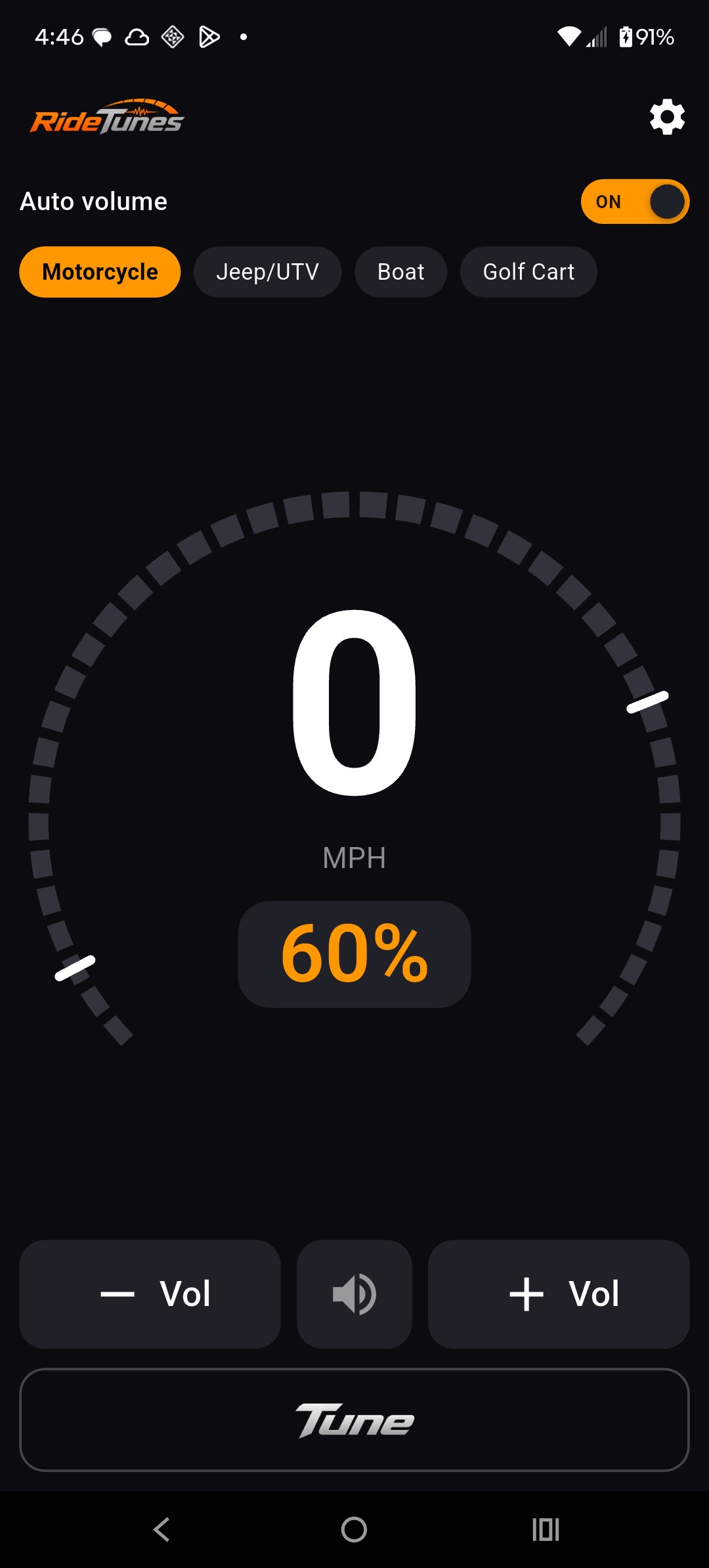
The Auto volume switch turned on
4

Start your music

Pandora, Spotify, Apple Music, a podcast — anything. RideTunes doesn’t play audio itself; it just sets your phone’s media volume.
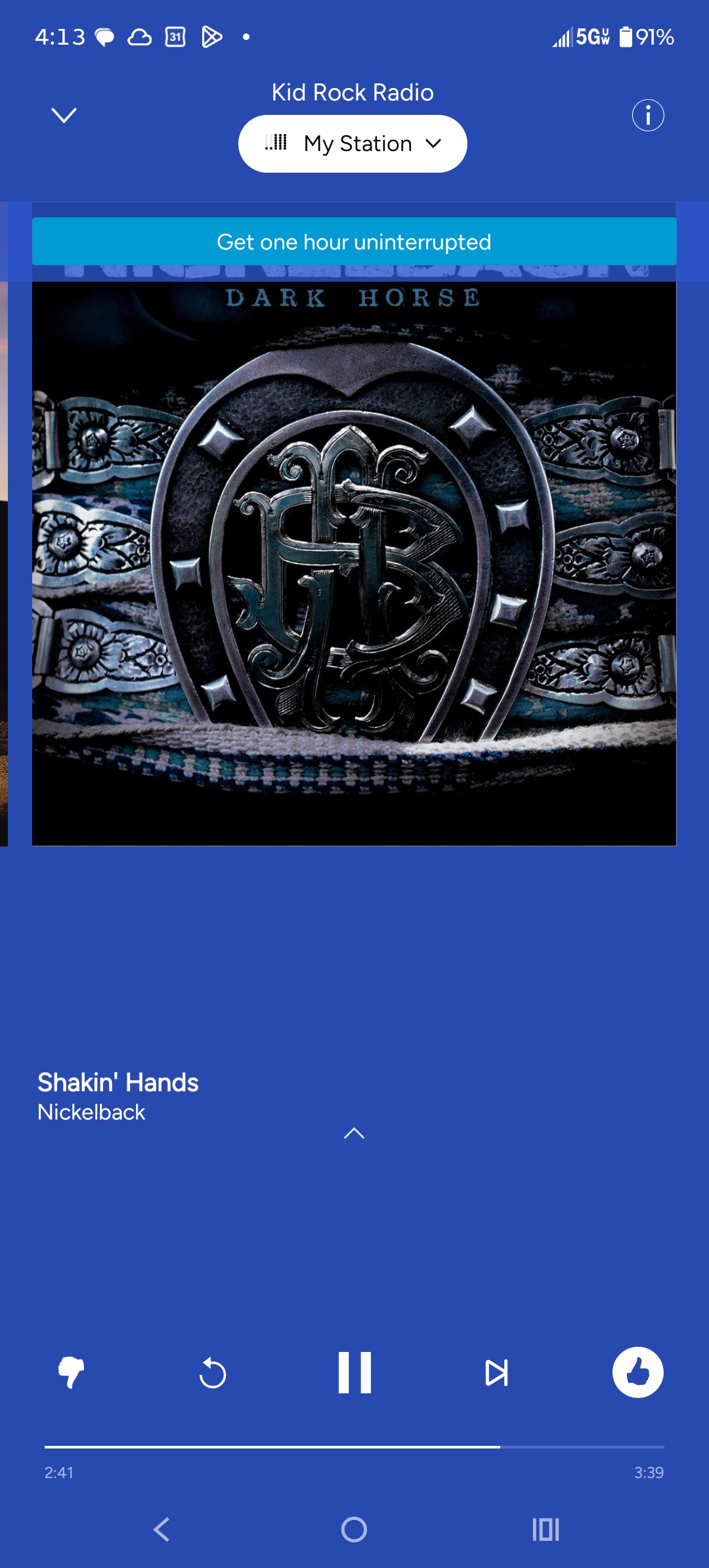
A music app playing
5

Ride. Volume follows your speed

Faster gets louder, slower gets quieter, and it changes gradually, never in jumps. Lock your screen and put the phone away. On iPhone you may see the volume bar flash as it adjusts; that’s normal.
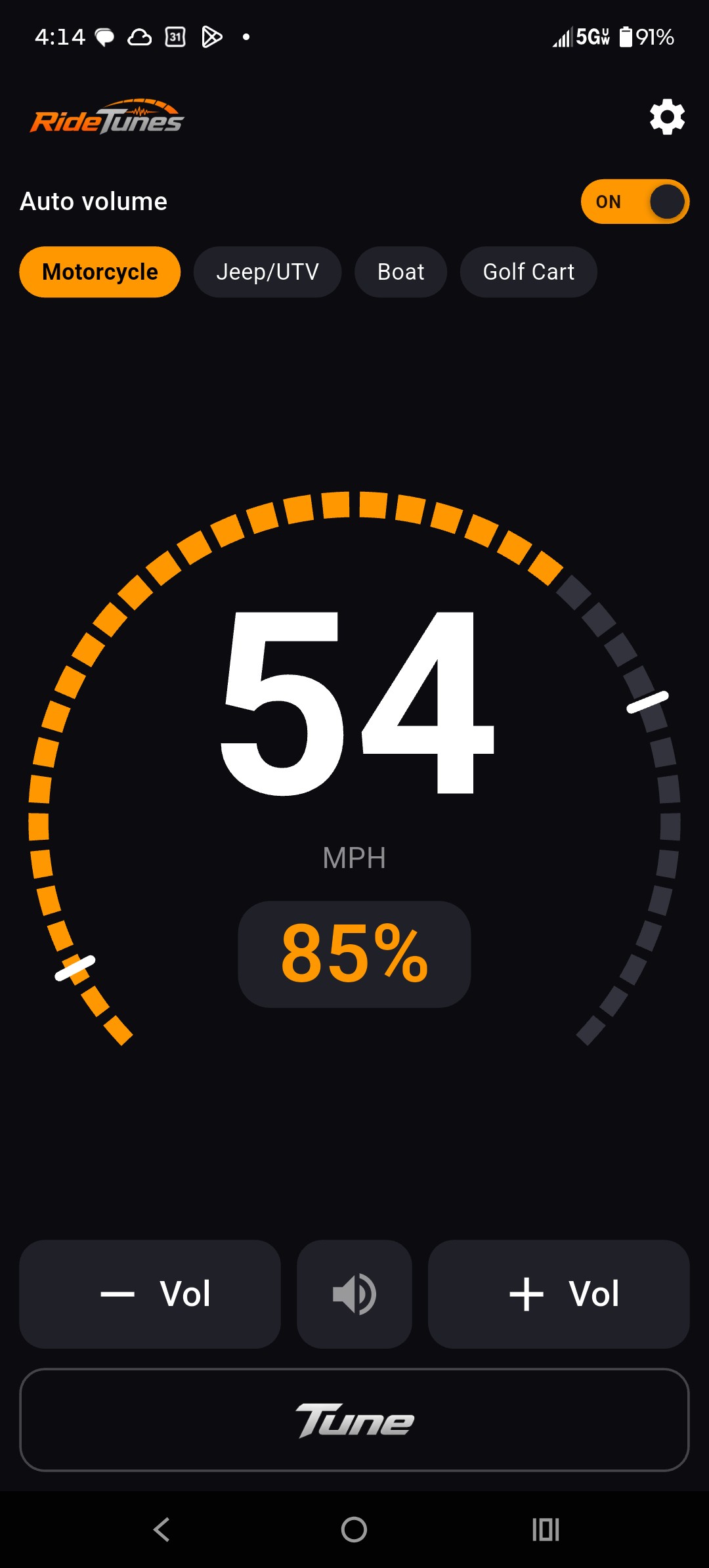
The home screen while riding, showing speed and volume
6

Too loud or too quiet?

Just this ride: tap − Vol or + Vol. A Ride +N% label shows how far you’ve nudged it; tap the label to go back to the preset. On Android the phone’s side volume buttons do the same.

Every ride: tap Tune at the bottom and change the preset’s speed and volume range.
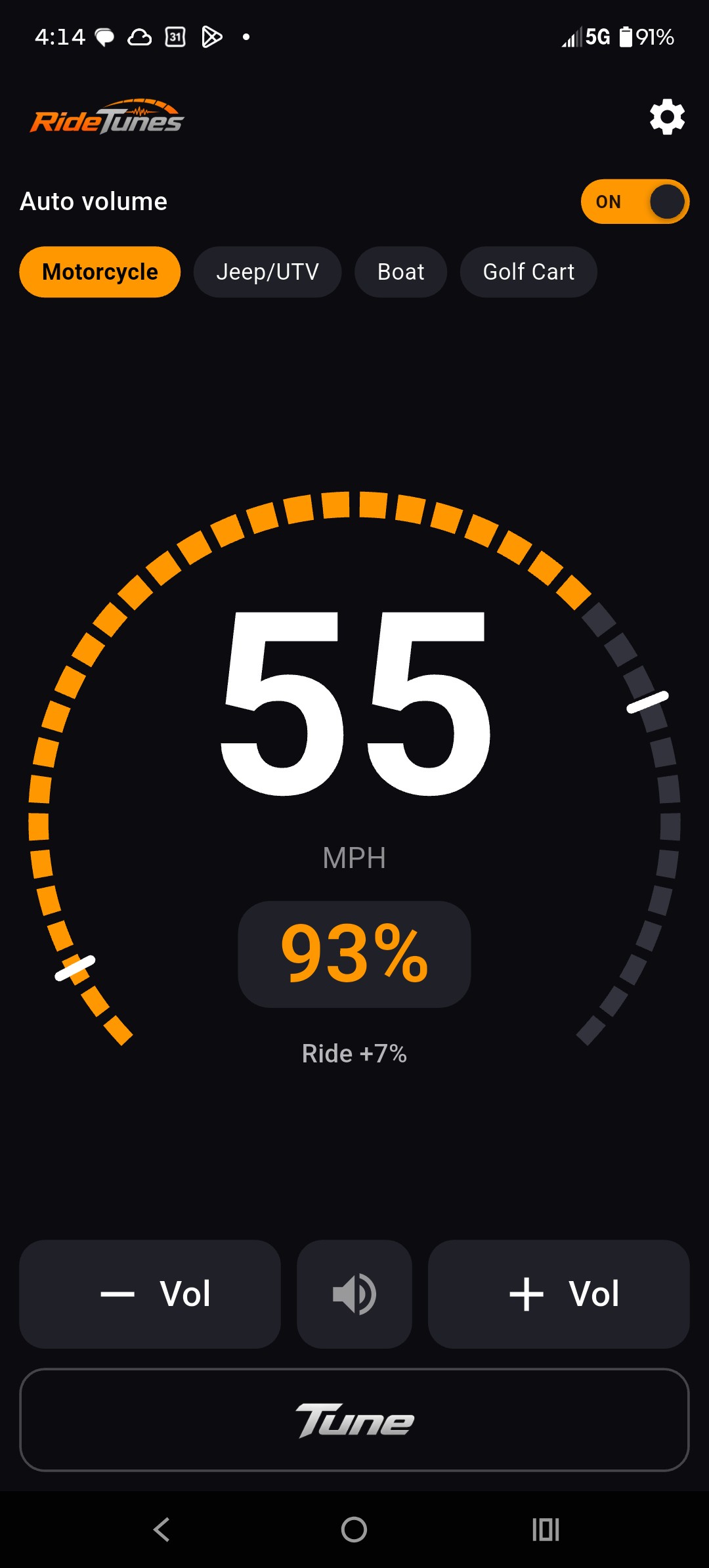
The Vol buttons, Ride label and Tune button on the home screen
7

Done? Turn Auto volume OFF

Your volume goes back to where it was before the ride, ready for regular listening.
The Auto volume switch turned off
C

If something’s not working

Still stuck? Email kozakincapps@gmail.com with your phone model and what you saw.

Google Play says “Try again” or Install doesn’t show up

  • After you tap Become a tester, Google Play can take a few minutes before Install works. Wait a couple of minutes and tap the opt-in link again.
  • Make sure you joined the Testers group with the same Google account that’s signed in to Google Play.

Location is off, or Auto volume won’t start

  • iPhone: Settings → Privacy & Security → Location Services → turn it on, then tap RideTunes → While Using the App, with Precise Location on.
  • Android: swipe down and turn Location on. Then Settings → Apps → RideTunes → Permissions → Location → Allow only while using the app, with Use precise location on.
  • Go back to RideTunes. It starts on its own once location is available.

It shows “GPS…” instead of my speed

  • GPS needs a view of the sky. Indoors, in a garage or under a carport it often can’t get a fix; that’s expected. Head outside and it usually appears within a few seconds (up to a minute the first time).
  • While you’re stopped, RideTunes holds your speed at 0 for a while before it shows “GPS…”, so a red light won’t trigger it.
  • Still “GPS…” out in the open? Turn Auto volume off and on again.

The volume isn’t changing

  • Check Auto volume is ON and the mute button (speaker icon between the Vol buttons) isn’t crossed out.
  • Below the preset’s starting speed the volume stays at the preset’s minimum. Changes start once you’re past it.
  • Headsets and helmet comms have their own volume too. RideTunes sets the phone’s; set the headset to a comfortable level once.
  • Android: if it stops in your pocket, set Settings → Apps → RideTunes → Battery to Unrestricted.

My music app paused when I started RideTunes

  • Early iPhone test builds could pause other audio when Auto volume turned on. It’s fixed in version 1.2.3: open TestFlight and update.
  • On an older build, just press play again. RideTunes keeps adjusting the volume either way.